This is defined in the advanced setting VMFS3.MaxHeapSizeMB. The main consumer of VMFS heap are the pointer blocks which are used to address file blocks in very large files/VMDKs on a VMFS filesystem. Therefore, the larger your VMDKs, the more VMFS heap you can consume
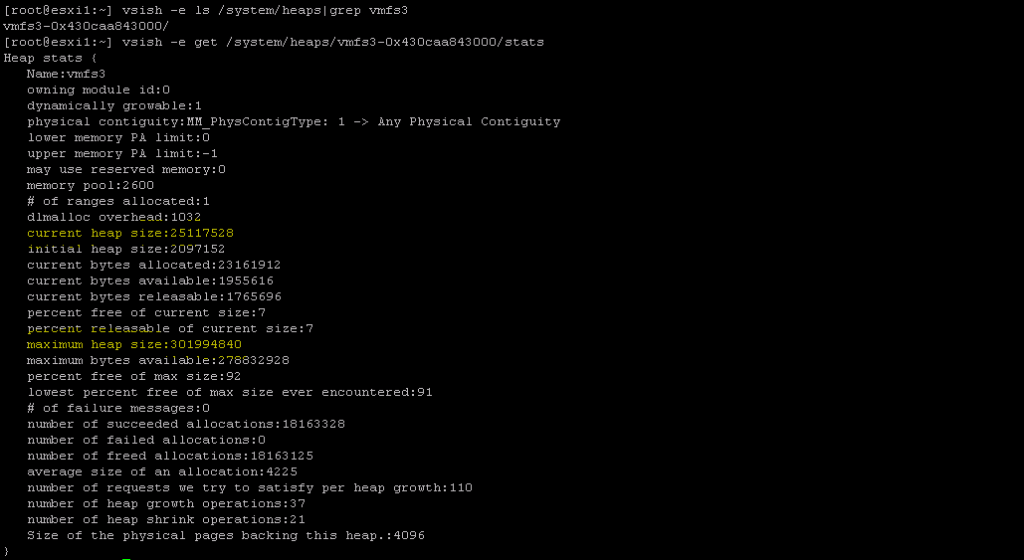
How to check the current heap used on esxi host:
vsish -e ls /system/heaps | grep vmfs3 vsish -e get /system/heaps/”Output of above command”/stats
example:
When the issue is observed
Any file open activities can encounter the issue.
Datastores showing “Not consumed” on hosts
Consolidation activity fails to perform with “Consolidation failed for disk node ‘scsi0:1’: 12 (Cannot allocate memory).”
vMotion,snapshot, VM power on/ power off activities.
Logs and key words to check
vmkernel.log
2020-06-29T14:59:36.351Z cpu21:5630454)WARNING: HBX: 2439: Failed to initialize VMFS distributed locking on volume 5eb9e8f1-f4aeef84-4256-1c34da50d370: Out of memory 2020-06-29T14:59:36.351Z cpu21:5630454)Vol3: 4202: Failed to get object 28 type 1 uuid 5eb9e8f1-f4aeef84-4256-1c34da50d370 FD 0 gen 0 :Out of memory 2020-06-29T14:59:36.351Z cpu21:5630454)Vol3: 4202: Failed to get object 28 type 2 uuid 5eb9e8f1-f4aeef84-4256-1c34da50d370 FD 4 gen 1 :Out of memory 2020-06-29T14:59:36.356Z cpu21:5630454)WARNING: HBX: 2439: Failed to initialize VMFS distributed locking on volume 5eb9e8f1-f4aeef84-4256-1c34da50d370: Out of memory
vmkwarning.log
vmkwarning.0:2020-06-16T13:28:23.291Z cpu48:3479102)WARNING: Heap: 3651: Heap vmfs3 already at its maximum size. Cannot expand. vmkwarning.0:2020-06-16T14:20:23.676Z cpu62:3479103)WARNING: Heap: 3651: Heap vmfs3 already at its maximum size. Cannot expand.
Check for the consumed Heap size using vish commands mentioned above.
Fix the issue by running below command for each vmfs6 datastore on each host.
1.Create Eager zeroed thick disk on all of the mounted VMFS6 datastores.
Pre-check mode in 6.7 u2 fails during the authz Data export
++In the /var/log/vmware/cloudvm/domain_consolidator.log you see the following error:
2019-04-25T20:49:29.215Z INFO domain_consolidator Started required services. 2019-04-25T20:49:29.659Z INFO domain_consolidator RC = 1 Stderr = Picked up JAVA_TOOL_OPTIONS: -Xms32M -Xmx128M Exception in thread “main” java.lang.NoClassDefFoundError: org/springframework/context/support/AbstractApplicationContext at com.vmware.vim.vmomi.core.types.VmodlContext.initContext(VmodlContext.java:61) at com.vmware.vim.vmomi.core.types.VmodlContext.initContext(VmodlContext.java:42)
++Fix was to upgrade the vCenter server to vCenter 6.7 U3 version
++Workaround for the issue:
A. Validate the spring* files under /opt/vmware/lib64 should be with 4.3.20 B. Update of the spring version in vCenter 6.7 U2 from 4.3.9 to 4.3.20. The script /usr/lib/repoint/authzservice_component_script.py has hard set references to the 4.3.9 version. You can run below command to edit all the entries in script sed -i ‘s/4.3.9/4.3.20/g’ /usr/lib/repoint/authzservice_component_script.py
C.Proceed with running the pre-check command for successful completion
2. Pre-check mode failed in 6.7 U3 during Authz data export
++In the /var/log/vmware/cloudvm/domain_consolidator.log you see the following error:
2020-08-04T02:49:06.213Z INFO domain_consolidator Started required services. 2020-08-04T02:49:07.908Z INFO domain_consolidator RC = 1 Stderr = Picked up JAVA_TOOL_OPTIONS: -Xms32M -Xmx128M Exception in thread “main” java.lang.Exception: QueryClient creation failed for VC:vcsa1.gss.local. Check ‘domain_data_export.log‘ at com.vmware.vim.dataservices.ExportAuthzData.main(ExportAuthzData.java:224)
2020-08-04T02:49:07.909Z INFO domain_consolidator Export of Authz Data failed. Exception { “resolution”: null, “problemId”: null, “detail”: [ { “id”: “install.ciscommon.command.errinvoke”, “translatable”: “An error occurred while invoking external command : ‘%(0)s'”, “args”: [ “Stderr: Picked up JAVA_TOOL_OPTIONS: -Xms32M -Xmx128M\nException in thread \”main\” java.lang.Exception: QueryClient creation failed for VC:vcsa1.gss.local. Check ‘domain_data_export.log’\n\tat
++In domain_data_export.log we could see error mentioned below indicates STS certification validation failed.
2020-08-04T02:49:07.814Z [main DEBUG com.vmware.vim.sso.client.impl.SoapBindingImpl opId=] Sending SOAP request to the STS server 2020-08-04T02:49:07.833Z [main DEBUG com.vmware.vim.sso.client.impl.ssl.StsSslTrustManager opId=] The SSL certificate of STS service cannot be verified against the list of client-trusted certificates sun.security.validator.ValidatorException: PKIX path building failed: sun.security.provider.certpath.SunCertPathBuilderException: unable to find valid certification path to requested target
++Fix would be update the STS service Certificate in MOB with MACHINE_SSL_CERT certificate.
A. Validate the certificate from vCenter mob for STS
C. In the filterCriteria text field, modify the value field to have only the tags <filterCriteria></filterCriteria> and click Invoke Method. This displays the ArrayOfLookupServiceRegistrationInfo objects
D. Search for sts/STS on the page. Find the value of the corresponding sslTrust field. The content of that field is the Base64 encoded string of the old certificate
E. Copy and paste the string in the ArrayofString field in the row of the sslTrust name (next to the ArrayOfString type), and save the string as a file named sts.cer.
F: Note the Thumbprint of certificate by opening it.
G. Run this command to export the new certificate to a file: /usr/lib/vmware-vmafd/bin/vecs-cli entry getcert –store MACHINE_SSL_CERT –alias __MACHINE_CERT –output /temp/new_sts.crt
H.The Thumprint of sts.cer and New_sts.crt do not match and its caused the validation for STS service fail.
I. Command to update correct certificate information under mob.
By default VRLCM 2.x has the TLS 1.0 disabled and TLS 1.1 and TLS 1.2 enabled . For security concerns customers looking for disabling TLS 1.1 and this blog helps in steps to perform the same.
Steps by step process to perform the same.
Take a backup of the file java.security
cp /usr/java/jre-vmware/lib/security/java.security /usr/java/jre-vmware/lib/security/java.security.bak2Open the file.
2. Open the file.
vi /usr/java/jre-vmware/lib/security/java.security
3. Search for “jdk.tls.disabledAlgorithms” and you may find a line similar to:

 Virtual SDDC