Migrating a virtual machine between two different vDS version fails with an error.

What caused this error?

When attempting to migrate a virtual machine from one vSphere Distributed Switch (vDS) to another, you experience these symptoms:
The migration fails.

You see these errors in the vSphere Web Client similar to:

The target host doesn’t support the virtual machines current hardware requirements. The destination virtual switch version or type (VDS 7.0.0) is different than the minimum required version or type (VDS 6.6.0) necessary to migrate VM from source virtual switch.

Why do you see this?

This issue occurs because there are comparisons being made between the vDS on the source and destination for the vMotion operation. The vDS must match. Otherwise, this would mean the destination vDS is not compatible.

How to fix this?

This is an expected behavior when migrating between mixed vSphere Distributed Switches.

To resolve this issue, upgrade your vDS switch with the lower version to match that of the higher one in your infrastructure.

How do we workaround this without vDS upgrade?

  1. vCenter Server 6.5.x and vCenter Server 6.7.x
  2. Log in to the vCenter Server using the HTML5 or vSphere Web Client.
  3. Highlight your vCenter Server name in the left-hand column and then click on the Configure tab on the right.
  4. Go to Advanced Settings and click Edit Settings.
  5. At the bottom of the pop-up window, add the following property in the Name section:

config.migrate.test.NetworksCompatibleOption.AllowMismatchedDVSwitchConfig

  1. Set the value to true.
  2. Click Add.
  3. Click Save.
  4. Re-try the migration.

For vCenter Server 7.x and later

  1. Log in to the vCenter Server using the HTML5 or vSphere Web Client.
  2. Highlight your vCenter Server name in the left-hand column and then click on the Configure tab on the right.
  3. Go to Advanced Settings and click Edit Settings.
  4. At the bottom of the pop-up window, add the following property in the Name section:

config.vmprov.enableHybridMode

  1. Set the value to true.
  2. Click Add.
  3. Click Save.
  4. Re-try the migration.

Note: After enabling hybrid mode in vCenter, the target DVS version must be at least 6.0.0.
VMFS-6 heap memory exhaustion on Esxi 7.0/7.0b hosts

What is VMFS heap and What its used for?

This is defined in the advanced setting VMFS3.MaxHeapSizeMB. The main consumer of VMFS heap are the pointer blocks which are used to address file blocks in very large files/VMDKs on a VMFS filesystem. Therefore, the larger your VMDKs, the more VMFS heap you can consume

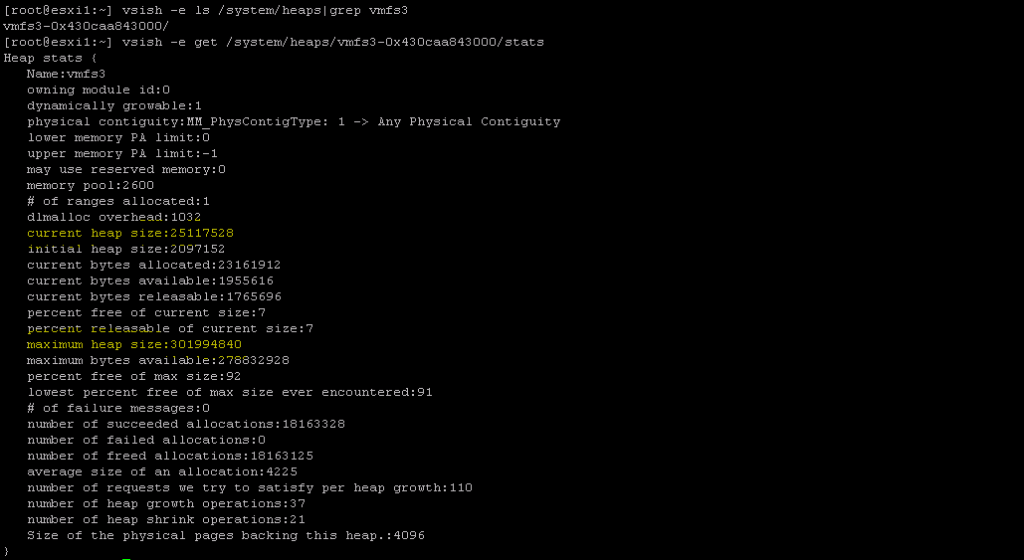
How to check the current heap used on esxi host:

vsish -e ls /system/heaps | grep vmfs3
vsish -e get /system/heaps/”Output of above command”/stats

example:

When the issue is observed

Any file open activities can encounter the issue.

Datastores showing “Not consumed” on hosts

Consolidation activity fails to perform with “Consolidation failed for disk node ‘scsi0:1’: 12 (Cannot allocate memory).”

vMotion,snapshot, VM power on/ power off activities.

Logs and key words to check

vmkernel.log

2020-06-29T14:59:36.351Z cpu21:5630454)WARNING: HBX: 2439: Failed to initialize VMFS distributed locking on volume 5eb9e8f1-f4aeef84-4256-1c34da50d370: Out of memory
2020-06-29T14:59:36.351Z cpu21:5630454)Vol3: 4202: Failed to get object 28 type 1 uuid 5eb9e8f1-f4aeef84-4256-1c34da50d370 FD 0 gen 0 :Out of memory
2020-06-29T14:59:36.351Z cpu21:5630454)Vol3: 4202: Failed to get object 28 type 2 uuid 5eb9e8f1-f4aeef84-4256-1c34da50d370 FD 4 gen 1 :Out of memory
2020-06-29T14:59:36.356Z cpu21:5630454)WARNING: HBX: 2439: Failed to initialize VMFS distributed locking on volume 5eb9e8f1-f4aeef84-4256-1c34da50d370: Out of memory

vmkwarning.log

vmkwarning.0:2020-06-16T13:28:23.291Z cpu48:3479102)WARNING: Heap: 3651: Heap vmfs3 already at its maximum size. Cannot expand.
vmkwarning.0:2020-06-16T14:20:23.676Z cpu62:3479103)WARNING: Heap: 3651: Heap vmfs3 already at its maximum size. Cannot expand.

Check for the consumed Heap size using vish commands mentioned above.

Fix the issue by running below command for each vmfs6 datastore on each host.

1.Create Eager zeroed thick disk on all of the mounted VMFS6 datastores.

vmkfstools -c 10M -d eagerzeroedthick /vmfs/volumes/datastore/eztDisk

2.Delete the Eager zeroed thick disk created in step 1.

vmkfstools -U /vmfs/volumes/datastore/eztDisk